Overview
Android devices include battery optimization and power management features designed to reduce battery consumption by limiting background activity for applications.
These restrictions may prevent Power Sentry from operating continuously in the background, potentially affecting its normal operation.
To help Power Sentry operate reliably, we recommend excluding it from Android’s battery optimization settings.
This guide explains how to disable battery optimization for Power Sentry and verify that the setting has been applied successfully.
Important: The exact names and locations of these settings may vary depending on your Android version, device manufacturer, and device model.
Step 1: Open Android Settings
- Unlock your Android device.
- Open the Settings application.
- Locate and select Apps or Apps & notifications, depending on your Android version.
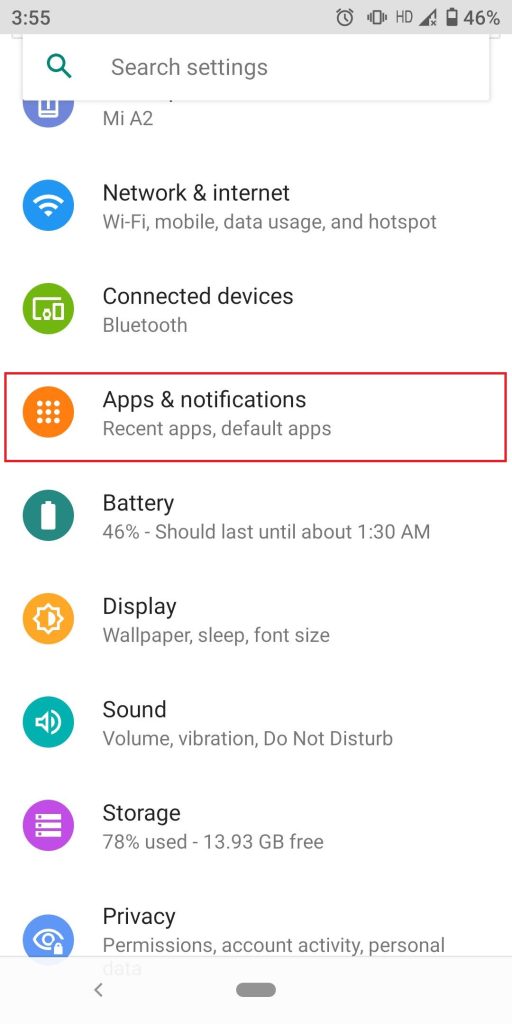
Step 2: Open Special App Access
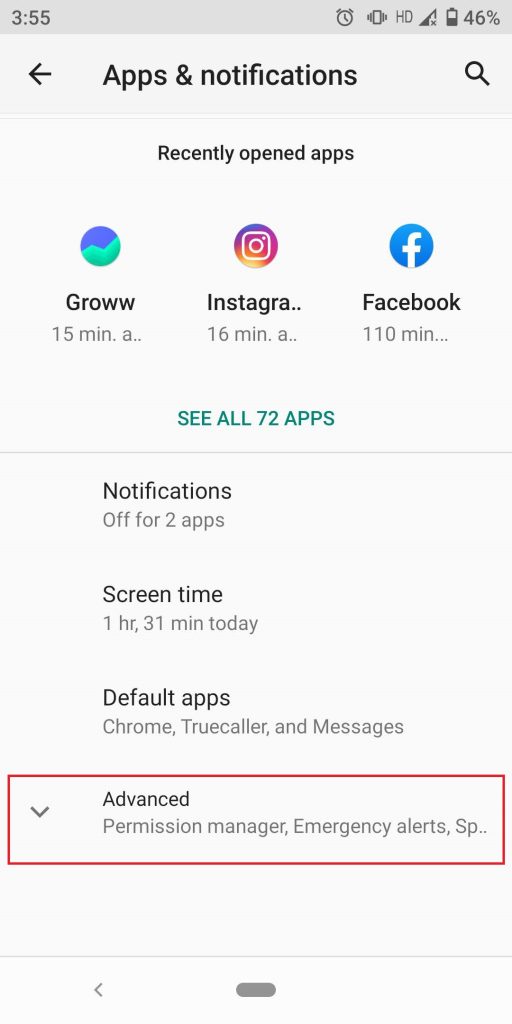
- In the Apps settings, select Advanced if this option is available.
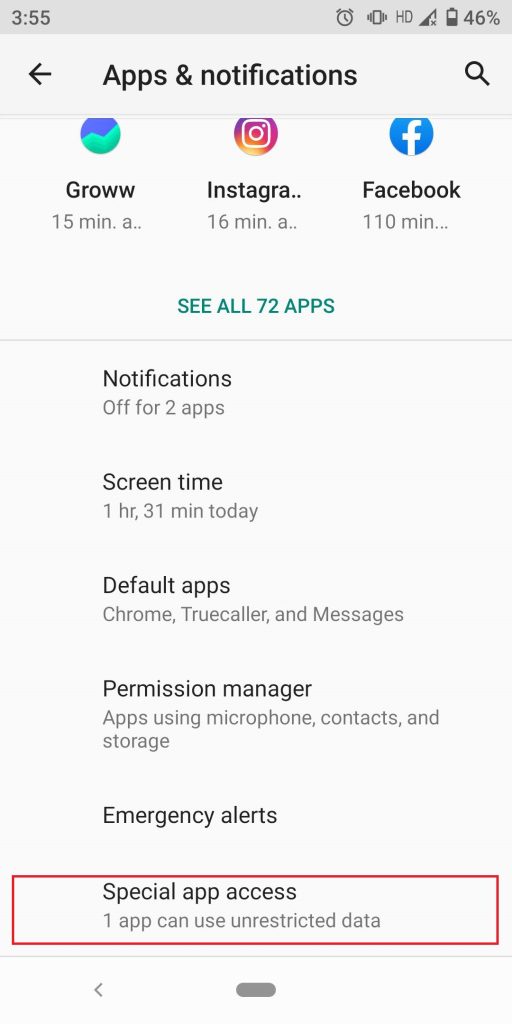
- Locate and select Special app access.On some Android devices, you may find this option directly under the Apps settings without opening Advanced.
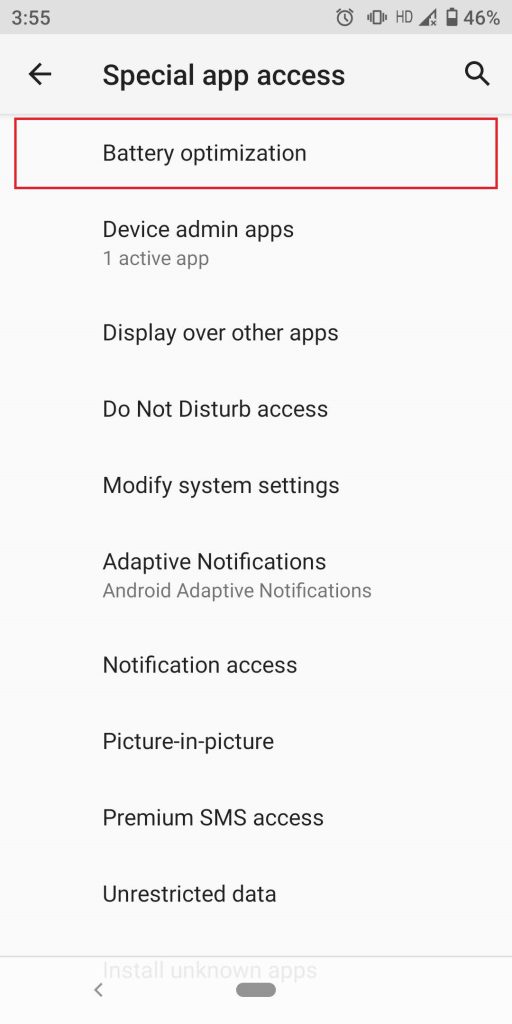
Step 3: Open Battery Optimization Settings
- Under Special app access, select Battery optimization.
- The device will display a list of applications and their current battery optimization settings.
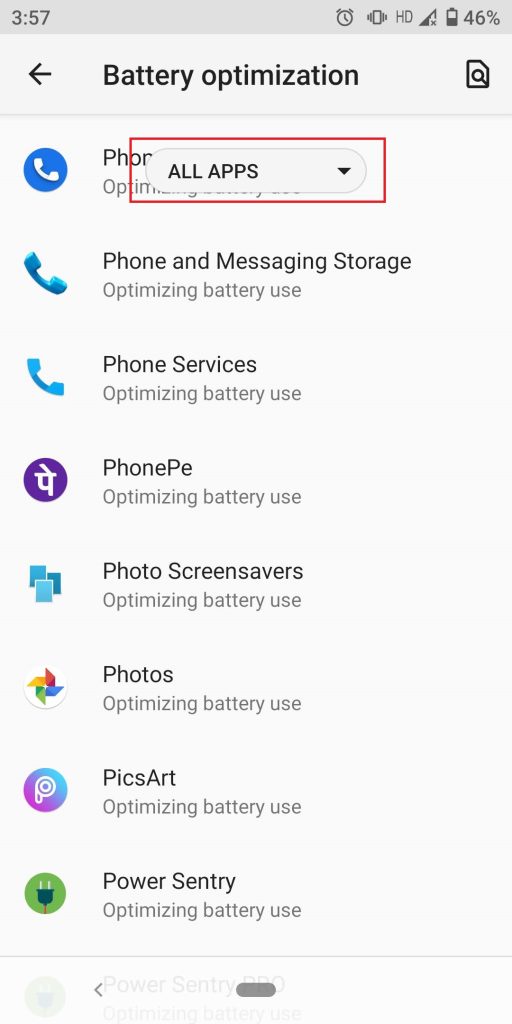
- At the top of the screen, locate the application filter. It may initially display Not optimized.
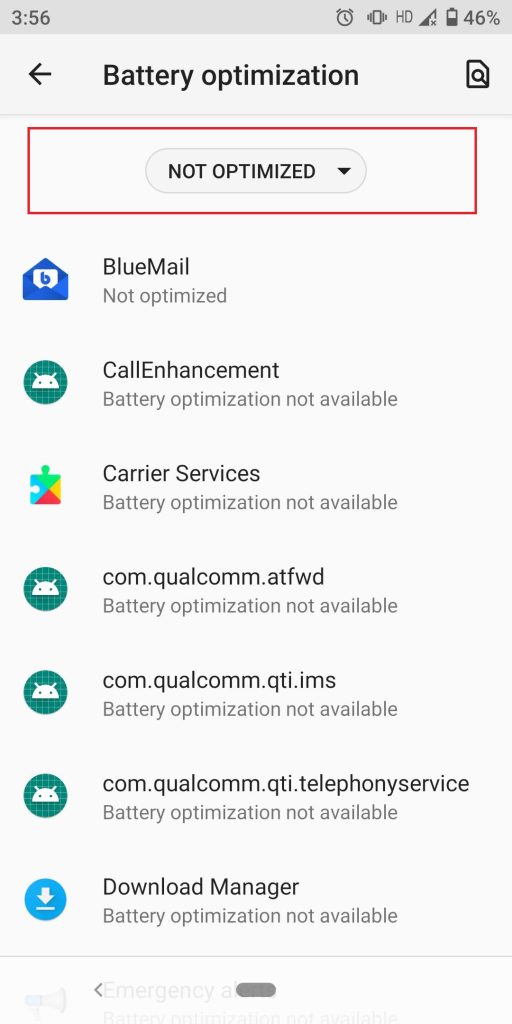
Step 4: Display All Installed Applications
- Tap the filter or dropdown menu displaying Not optimized.
- Select All apps.
- Wait for the complete application list to load.
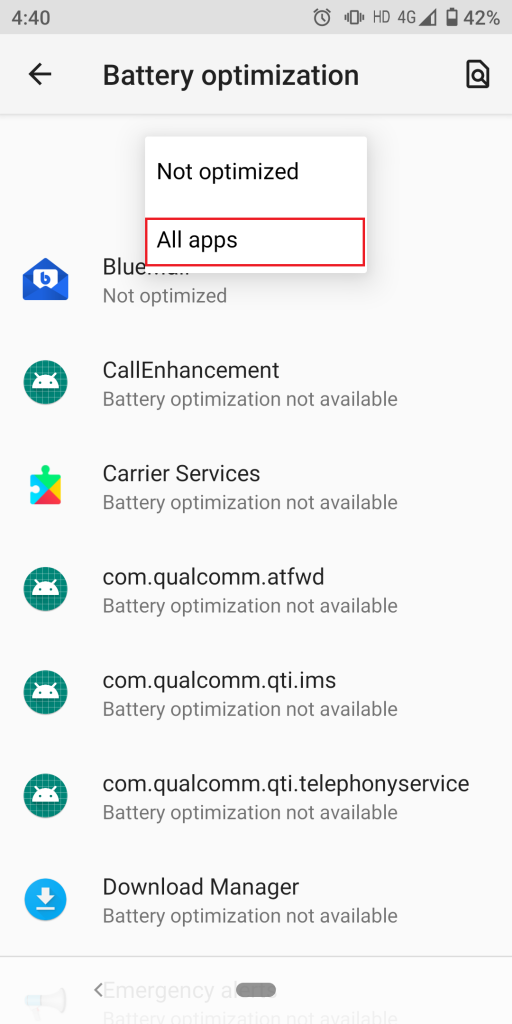
This will allow you to locate Power Sentry, even if Android is currently optimizing its battery usage.
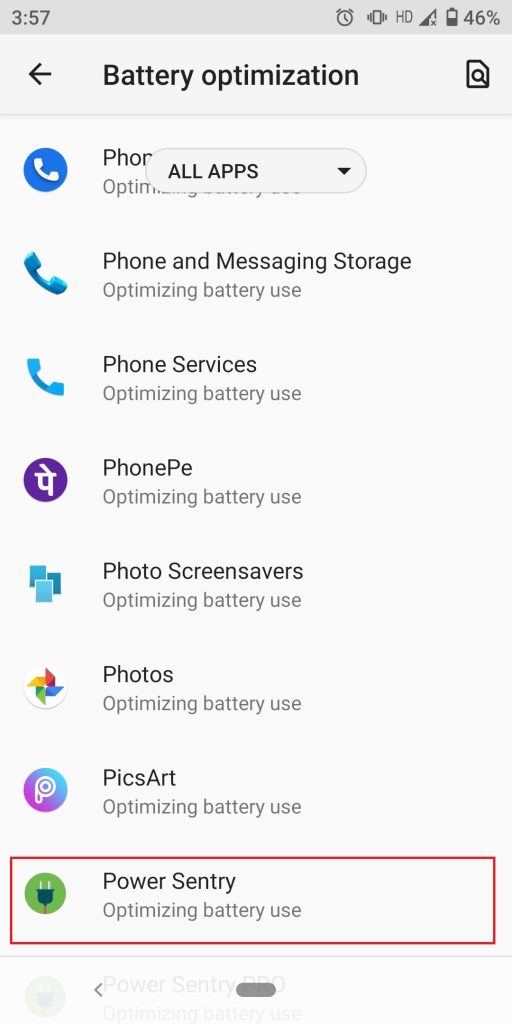
Step 5: Disable Battery Optimization for Power Sentry
- Scroll through the application list and locate Power Sentry.
- Tap Power Sentry to open its battery optimization settings.
- Select Don’t optimize.
- Tap Done to save the changes, if your device displays a confirmation button.
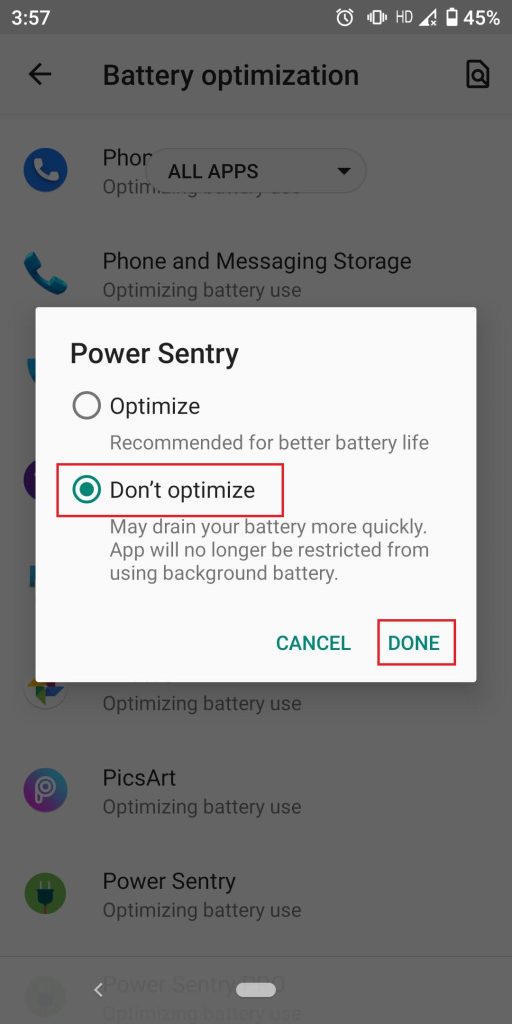
Power Sentry is now excluded from the standard Android battery optimization setting.
Step 6: Verify the Configuration
We recommend verifying that the change was applied successfully.
- Return to the Battery optimization screen.
- Tap the application filter at the top.
- Select Not optimized.
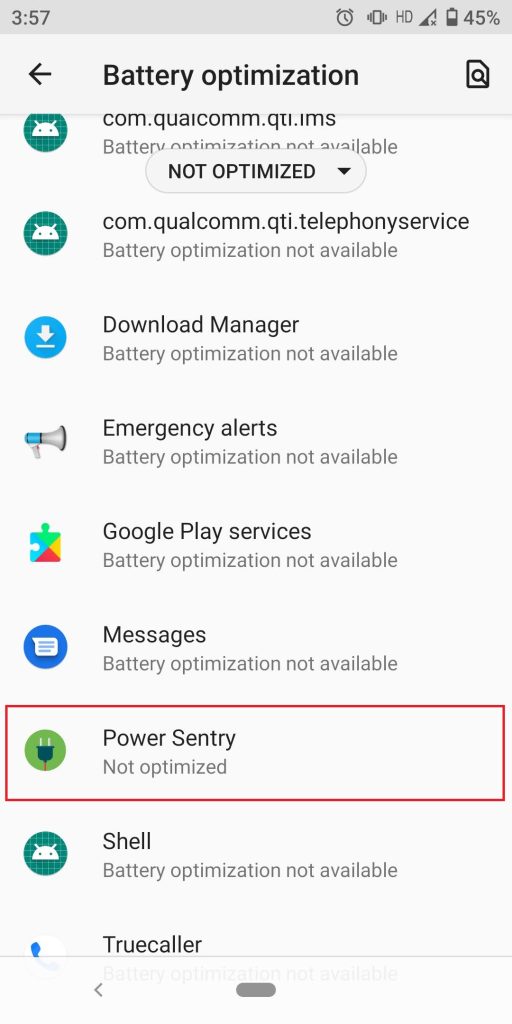
- Locate Power Sentry in the displayed application list.
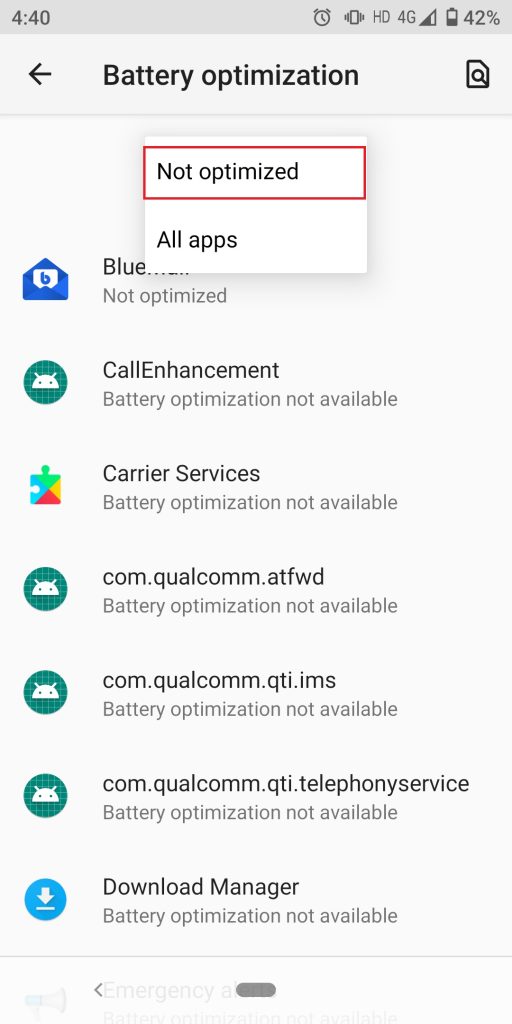
If Power Sentry appears in the Not optimized list, the battery optimization exclusion has been applied successfully.
Alternative Method: Use Android Settings Search
If you cannot locate Battery optimization using the navigation described above, try the following:
- Open your device’s Settings application.
- Tap the Settings search icon or search bar.
- Search for Battery optimization.
- Open the matching settings option.
- Select All apps if an application filter is displayed.
- Locate Power Sentry.
- Select Don’t optimize and confirm your selection.
The search method may be easier on newer Android devices where the settings menu has been reorganized.
Additional Recommendations
Some Android manufacturers provide additional power management controls beyond the standard Android battery optimization settings.
If Power Sentry continues to experience background restrictions after completing the steps above, check whether your device provides any of the following settings:
- Background activity: Allow Power Sentry to run in the background.
- Unrestricted battery usage: If available, select Unrestricted for Power Sentry under its App battery usage settings.
- Auto-start: Allow Power Sentry to start automatically, if your device provides this option.
- Background restrictions: Ensure that Power Sentry is not listed as a restricted application.
- Power-saving mode: Check whether your device’s system-wide power-saving mode is restricting background applications.
The availability and names of these settings depend on your device manufacturer and Android version.
Troubleshooting
Problem: Power Sentry does not appear in the All apps list.
- Confirm that Power Sentry is installed on your device.
- Restart your device and check the Battery optimization settings again.
- Use the Settings search feature to locate the application.
Problem: Power Sentry still stops running in the background.
- Confirm that the Don’t optimize setting has been applied.
- Check whether your device has additional background activity or auto-start restrictions.
- Check whether a manufacturer-specific battery management feature is restricting Power Sentry.
- Make sure the application has not been manually restricted.
Problem: I cannot find the Battery optimization option.
Android settings menus differ between manufacturers and versions. Use the Settings search feature and search for Battery optimization or App battery usage.
If the option is not available, consult your device manufacturer’s support documentation.
Conclusion
Excluding Power Sentry from Android battery optimization helps prevent standard battery-saving restrictions from interfering with its background operation.
For the best results, verify that Power Sentry appears under Not optimized and check any additional background power management restrictions provided by your device manufacturer.
If you continue experiencing issues, please contact our support team for assistance.
Download Power Sentry: Get Power Sentry from Google Play